
We provide access to all standard pre-meet reports. Some, like athlete check-in sheets and meet entries reside in your Swimtopia team management site (if using), while others can be found in your meet in Swimtopia Meet (once you have merged entries) as seen below.
» Note: If you do not see a needed report, feel free to submit a request with the information you are looking for to the Customer Happiness Team.
Covered in this Article:
➧ Report Access and Design Options
➧ Available Pre-Meet Reports
- Swimtopia Pre-Meet Reports
- Heat Sheets
- Psych Sheets
- Timer Sheets
- Place Judge Form
- Dive Score Sheets
- Session Report
- Entry Cards/Labels
- Athlete Check-In
- Records
- Athlete Roster
➧ Tips: Labels, Printing, Margins, and Website Display
- Label Tips
- Printing Tips
- Margin Configuration Issues
- Save and Display .PDF Reports on your Swimtopia Site
Report Access and Design Options |
➧ Accessing Reports |
Post-Meet Reports are found under Swimtopia Meet Settings (gear icon).
➞ See Swimtopia Meet Settings – Post-Meet Reports if looking for reports after the meet has been completed.
https://maestro.swimtopia.us/a/meet/17463/settings/reports
➧ Report Design Options |
Clicking OPTIONS in the header will expand and collapse the filter and design menu. Collapsing this menu allows the report data to be more fully displayed in the browser window and frees up space to display the team name, date, and report title in the header.
This state will be "sticky" between reports - The system assumes you may be interested in that setting for other reports.
➞ FILTERS |
|
|
Filter options allow you to choose a specific session or all, certain events and type (and lane in some reports), heat range, age range (hidden for school teams - school year displays in report), competition category, specific team if desired, and team pairing (if Double Dual Scoring is enabled). » Note: The school years in the meet are based on the host team setup in Swimtopia. If the visiting team uses a format that cannot be mapped correctly, the host can choose to edit those in Swimtopia Meet. |
Example from Heat Sheet Report |
➞ DISPLAY OPTIONS |
|
| The display options vary by report and can be adjusted as needed. View the report details for each report below. |
Example from Heat Sheet Report |
➞ BENCHMARKS |
|
|
This section provides options for displaying Pool and Team Records along with Time Standard Sets (if these benchmarks have been created at the league or team level within a Swimtopia team management site). These can be configured to display in Heat Sheets, Psych Sheets, Records Pre-Meet Reports, and Results Post-Meet Reports. ➞ See our Creating a Record Book and Time Standards & Qualifying Times Overview articles for more on these topics. |
|
➞ LAYOUT |
|
|
Label Format: 2x3 Cards (US Letter), 3x10 Avery 8160 (US Letter), 3x11 Avery L7157 (A4) Paper Size: US Letter - 8.5x11in, US Legal - 8.5x14in, A4 - 210x297mm Paper Margins: The default is set at 0.4, which works for most printers. Optimal printing for a specific printer may require modifying these settings. » Note: Paper size and page margins are stored in the browser/desktop app, so users only need to set this up once. Best printing results occur with Chrome. (versions 89+ - March 2021 - Only fully supported browser in Swimtopia Meet.) |
|
➞ MARGIN ADJUSTMENTS |
|
| Example - For a perfect printout, an Epson XP-7100 requires 0.2” margin per side. To make this work, you would adjust the Swimtopia Meet setting from the default 0.4" to 0.2" for each margin (or mm equivalent for non-US). In the ‘More settings’ in Chrome’s print menu set ‘Margins’ to ‘Custom’. Then mouse over the preview to set the top margin to 0.2” and the left, right, and bottom margins to 0” (Swimtopia Meet will add the left, right, bottom margins.) |
» Tip: We suggest leaving the default margin settings unless necessary, to avoid configuration issues that could cause paper waste. If your printer requires some adjustments, test print a few pages to ensure you have them set appropriately. ➞ See the section below on Possible Margin Configuration Issues if you run into any issues when printing. |
Available Pre-Meet Reports |
➧ Swimtopia Pre-Meet Reports |
➞ Athlete Check-In SheetsAvailable from within your Swimtopia team management site and within Swimtopia Meet (below). ➞ Meet Entries ReportsAvailable in your Swimtopia team management site. To view these Swimtopia pre-meet reports and more ➞ See Swimtopia Pre-Meet Reports – Athletes and Entries |
➧ Heat Sheets |
|
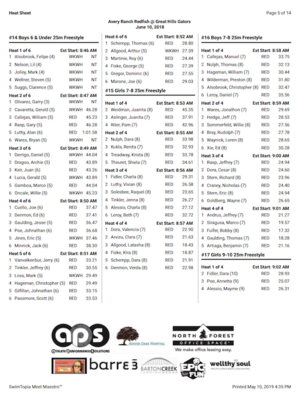
https://maestro.swimtopia.us/a/reports/meet/1349/heat-sheets ➞ Filter Options
➞ Display Options
➞ Layout Options
» Note: The Estimated Start Times are based on the start time set in the meet under your Settings > Meet Setup. If the times are not accurate, check that setting and update as needed. ➞ Sponsor BannerWe have an easy way for you to get your sponsor logos onto the bottom of your Swimtopia Meet heat sheets. See our Sponsorships Help Center article for more details on setup within the Swimtopia Sponsors section.
➞ Benchmarks: Records and Time StandardsAvailable Records and Time Standards Sets display if they have been created at the league or team level within a Swimtopia team management site. ➞ See our Creating a Record Book and Time Standards & Qualifying Times Overview articles for more details on this topic. ➞ Athlete Number Display(ex. USA Swimming IDs) - Long names are truncated to show full# ➞ Visibility/Notification in the Swimtopia Mobile AppHeat Sheet visibility in the mobile app is configurable on a meet-by-meet basis. By default, the heat sheets are not visible once the meet entries are merged, creating your meet in Swimtopia Meet. This allows meet directors and coaches to review heat sheets and make final changes before publishing. This also enables those teams that sell heat sheets as a fundraiser to control the availability of this information from the Swimtopia mobile app. When publishing the heat sheets to the Swimtopia mobile app, you can opt to send a notification informing the participating athletes and parents that the heat sheets are ready to be viewed. See ➞ Swimtopia Meet Settings - Mobile App to learn how you can publish your heat sheets in the Swimtopia mobile app and notify your members as appropriate. ➞ Meet TimelineThe timeline displayed in the heat sheet and session report is derived from calculations based on the meet start/end times as known in the Settings > Meet Setup screen. Unlike the timeline displayed in the mobile app, which is adjusted on the fly based on the actual meet progression (delays, scheduled breaks added, etc.), the heat sheet and session reports do not update as the timeframe changes at this time. Duration of heats with no specified entry times (all NT entries) is estimated based on a combination of distance, stroke, swimmer age, and swim course (yards or meters). |
➧ Psych Sheets |
|
https://maestro.swimtopia.us/a/reports/meet/1349/psych-sheet ➞ Filter Options
➞ Display Options
➞ Layout Options
➞ Benchmarks: Records and Time StandardsAvailable Records and Time Standards Sets display if they have been created at the league or team level within a Swimtopia team management site. ➞ See our Creating a Record Book and Time Standards & Qualifying Times Overview articles for more on this topic.
|
➧ Timer Sheets |
|
https://maestro.swimtopia.us/a/reports/meet/1349/timer-sheets ➞ Filter Options
➞ Display Options
➞ Layout Options
*This "Sort By" option offers flexibility for how your team prefers to print, trim, and distribute your timer sheets. |
➧ Place Judge Form |
|
https://maestro.swimtopia.us/a/reports/meet/1349/ ➞ Filter Options
➞ Display Options
➞ Layout Options
|
➧ Dive Score Sheets (when diving is enabled) |
|
This report is used to manually capture dive scores. It will only show up in the list of Pre-Meet Reports under Swimtopia Meet Settings when there are diving events in the meet. Meet and athlete data is pre-filled, and there will be one sheet per diver. https://maestro.swimtopia.us/a/meet/17463 ➞ Filter Options
➞ Display Options
➞ Layout Options
|
➧ Session Report |
|
https://maestro.swimtopia.us/a/reports/meet/1349/session-summary ➞ Filter Options
➞ Display Options
➞ Layout Options
➞ Meet TimelineThe timeline displayed in the heat sheet and session report is derived from calculations based on the meet start/end times as known in the Settings > Meet Setup screen. Unlike the timeline displayed in the mobile app, which is adjusted on the fly based on the actual meet progression (delays, scheduled breaks added etc), the heat sheet and session reports do not update as the timeframe changes at this time. Duration of heats with no specified entry times (all NT entries) is estimated based on a combination of distance, stroke, swimmer age, and swim course (yards or meters). |
➧ Entry Cards/Labels |
➞ Entry Cards Per Athlete (example)If your meet-day check-in workflow involves printing a sticker for each swimmer listing all their events, use the 2x3 card label format and "Per Athlete" label type. https://maestro.swimtopia.us/a/reports/meet/1349/entry-labels ➞ Entry Labels Per Entry/Event (example)➞ Filter Options
➞ Layout Options
➞ Display Options
» Note: it is important that this report is printed at 100% scale and not "Fit to page" (which will shrink the output and cause misalignment). |
➧ Athlete Check-In |
|
https://maestro.swimtopia.us/a/reports/meet/1349/entries-by-athlete ➞ Filter Options
➞ Display Options
➞ Layout Options
|
➧ Records |
|
Pool, Team, and League Records will be available to select on any report with a ‘BENCHMARKS’ section in the report options - if they have been created on a team's or league's Swimtopia team/league management site ➞ See our Creating a Record Book article for more on this topic. » Note: This Records report is a "Pre-Meet" report, which means it can only display records imported at the time of the entries merge. The Record Breaker Labels report is more useful if you are looking for post-meet record breakers. https://maestro.swimtopia.us/a/reports/meet/1349/records ➞ Filter Options
➞ Display Options
➞ Benchmarks: Records and Time StandardsAvailable Records display if they have been created at the league or team level within a Swimtopia team management site. ➞ See our Creating a Record Book article for more details on this topic. ➞ Layout Options
➞ Records by Event (Display Option)This format is good for the announcer's table. ➞ Records by Age Group (Display Option) |
➧ Athlete Roster |
|
Each competing team's athlete roster is available to view and download in this report. ➞ Filter Options
➞ Display Options
➞ Layout Options
|
Tips: Labels, Printing, Margins, and Website Display | ||||||||
➧ Label Tips | ||||||||
|
Label reports are available in the Desktop app for teams using timing systems. The first page of labels is generated as a preview, and a full PDF can be opened for printing.
Swimtopia Meet provides multi-computer support -- you can have a "labels/printer only" computer that automatically stays in sync with the main time input computer. | ||||||||
➧ Printing Tips | ||||||||
|
Your specific device, printer hardware, and driver can contribute to how reports print. We cannot control these variables, but we have recommendations to help you achieve the desired results. ➞ Swimtopia Meet Version
➞ Additional Tips
| ||||||||
➧ Margin Configuration Issues | ||||||||
|
If you modified the margins and are seeing issues, it's likely attributed to this adjustment ➞ See the LAYOUT section above. If you see any of the following issues when printing, you'll need to re-adjust your margins to resolve the issue:
If you are experiencing printing issues and have reviewed the tips above, feel free to submit a support ticket. It will save time if you can provide details about your web browser configuration in the ticket -- visit this page and include the code/URL provided - https://www.whatsmybrowser.org/ | ||||||||
➧ Save and Display .PDF Reports on your Swimtopia Site | ||||||||
|
Meet admins can choose to share Heat Sheet information in the mobile app for Pro users. Some teams also choose to share links to PDF versions of various reports on their Swimtopia sites by uploading them to the meet. You can save reports in PDF format through your computer’s print function:
In Swimtopia, go to Schedule > Select Meet Name > Files > New Attachment to upload.
» Note: if you are having printing issues, you can download the PDF and then open it in a PDF viewer and print from there. (If your printer is configured to print to PDF, you will see this as a destination option) |
➞ Next Topic: Swimtopia Meet - Athlete Entry Deck Changes
Comments
0 comments
Article is closed for comments.