
Covered in this Article:
➧ Accessing a Registration Form
➧ Registration Progress, Locking, and Timer
➧ Registration Steps
- Step 1: Household Confirmation (New Users Only)
- Step 2: User Selection and Contact Information
- Step 3: Questions and Acknowledgements (Waivers)
- Step 4: Medical Information and Waiver
- Step 5: Volunteer Sign-up
- Step 6: Merchandise
- Step 7: Order Summary and Payment
- Step 8: Confirmation
Accessing a Registration Form |
➧ Registration Varies by Team |
|
Teams vary in how they manage the registration of their members. In most cases, team admins will open a registration form and communicate this to the community by sending an email with a link to the registration form or page, or you will see a "Register now" button on your team's website: If you are unsure, and do not see an option to register on your team website, contact your team reps directly. Most teams provide a contact form or list on their site. |
➧ Sign-in Required to Register |
You are required to sign in (returning members) or create a Swimtopia/Team Topia account (new members) before you can register.This enhances user security through email address ownership authorization, and enables reliable pre-filling of parent and athlete data each season. Sign in using the same login credentials if you have been affiliated with another team using the Swimtopia/Team Topia (non-swim) team management platform. If you have questions on signing in, creating an account, or managing your account, ➞ see the Member Account Management and FAQs Help Center article for detailed steps. |
Registration Progress, Locking, and Timer |
➧ Registration Progress Bar |
|
During the registration process, a progress bar will show you what you have completed and what is next. You can go back to a previous section at any time to make changes. » Note: Your team may or may not have the Athlete Groups, Medical, Volunteer, or Merchandise sections enabled. |
➧ Registration Locking and Countdown Timer |
|
Some teams have a limited quantity of available spots or items that are selected throughout the registration process. In order to avoid overbooking, we lock in your selection of those items while you're in the process of registering. These items can include:
If your team has placed limits on any of the above items, as soon as you 'reserve' a spot for any of those items throughout your registration process, you will keep that spot -- if you reserved the last spot and someone else begins to register before you complete your registration, they will be notified that that spot is not available. After you add any limited items to your registration, you will have 15 minutes per section to complete any subsequent steps in the registration. The countdown timer will reset for each section. If your registration form is still open after 15 minutes of inactivity, you will be forced back to the first page of the registration, and any limited quantity items you signed up for will be removed. For example, if there are registration limits, then all athletes affected by those registration limits should be removed. However, if there are no registration limits, the athlete registration will NOT be removed, but other limited items (like merchandise) will be removed. |
Registration Steps |
➧ Step 1: Household Confirmation (New Users Only) |
|
When you create an account, we check to see if you are already in the database on your team (roster or results import, manually created by admins), or on another team using Swimtopia/Team Topia. In most cases, we can auto-match your accounts when names/emails etc. match exactly. In those cases, you will not see this step. If we find a close match but cannot auto-match (e.g., same name/gender, but different birthday), we provide an opportunity for you to select potential matches for you and your family members. ➞ Possible Matching UsersFirst, we will present possible matches for you. You may see a match that has a different email address attached to it (example above). If you select this user account, but want to use your signed-in email address for communication from the team, you can edit this during the registration process. ➞ Potential Household MembersIf the matched user selected has other members tied to the account, we will present those potential household members to determine whether to add the member(s) to your household. This is completing your household account, but it does not add those family members to the current registration form. Deciding who you are registering is the next step. |
➧ Step 2: User Selection and Contact Information |
➞ New RegistrantsYour name/email is auto-populated, based on your account, and you can add new parents/guardians and athletes. If they have ever registered on another team using Swimtopia/Team Topia (non-swim), or have been imported via a roster import, we will display those members. ➞ Returning RegistrantsA list of your household members are displayed with checkboxes to select who to include on this registration form. Add additional parents/guardians and athletes, as needed. ➞ Edits to User Information (Email Updates Etc.)After you have selected who will be included in this registration, you will see an EDIT link next to the name in case you need to update the contact information. You can also add/update your phone, availability to volunteer, add an athlete ID and school year (school teams), as needed You can use a different name (such as a preferred name) or email address for communication on each team, and still use your original email to sign in (if you ever sign out), or use this updated email to sign into this team. If you change your email to one that you have not authorized ownership of previously, you will receive an activation email to do so. ➞ Edits to Existing Athlete Competition Category and Birth DateYou will not be able to change the “Competition Category” and “Birth Date” for returning athletes, due to registration limits and meet entry restrictions your team may have set. Contact your team administrator for updates, or if you see users who should not be in your household. ➞ Add and Remove (Parents/Guardians/Athletes)Once a parent/guardian/athlete is added to your household, you add and remove them from a form by selecting or deselecting the "Include in this registration" checkbox. If you already registered an athlete and came back to register a sibling, or you are signing one but not all athletes up for a clinic, make sure the already registered athlete is not selected to be included in this registration. This will not affect the athlete's original registration; it is only removing them from this form. ➞ Home AddressAdd/confirm your home address and phone number (if requested by your team).
|
➧ Step 3: Questions and Acknowledgements (Waivers) |
|
Acknowledge any liability waivers, questions, or agreements your team requires. Enter your initials to electronically sign if required. Click the Next Step button to save your changes and move on to the next section. |
➧ Step 4: Medical Information and Waiver |
|
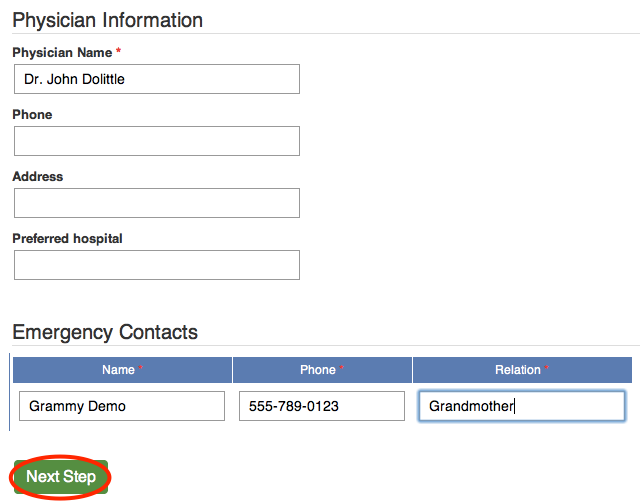
If your team requires this section, you may need to sign your team's medical waivers, enter medical conditions, physician details, and emergency contacts.
Click the Next Step button to save your changes and move on to the next section. |
➧ Step 5: Volunteer Sign-up |
|
PREMIUM This feature is available to our Premium customers.Teams have the option to either collect Volunteer Role Preferences or allow direct Job/Role Sign-up during registration. ➞ Exempt VolunteersIf you have been pre-assigned to a role that exempts you from fulfilling the minimum commitment for the season, you will see this message and your exempt role here instead. You can still volunteer for shifts or role preferences by clicking the "Show options" link.
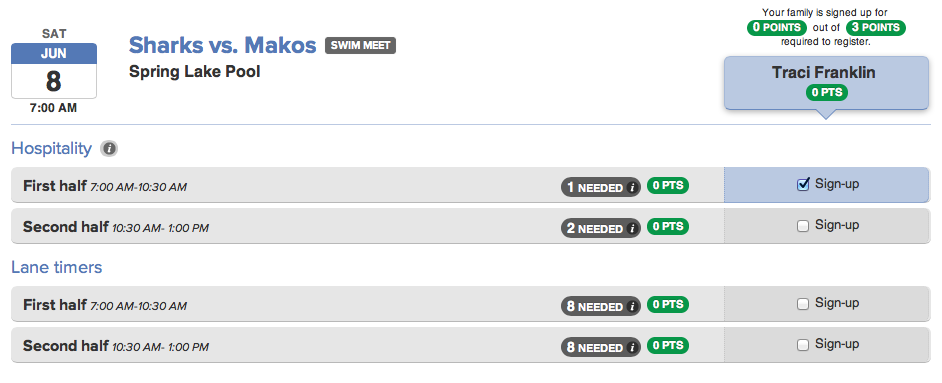
➞ Job/Role SignupIf your team allows Job/Role Sign-up during registration, choose available season roles and job shifts. Any required number of roles and/or shifts per parent must be fulfilled before your registration can be submitted.
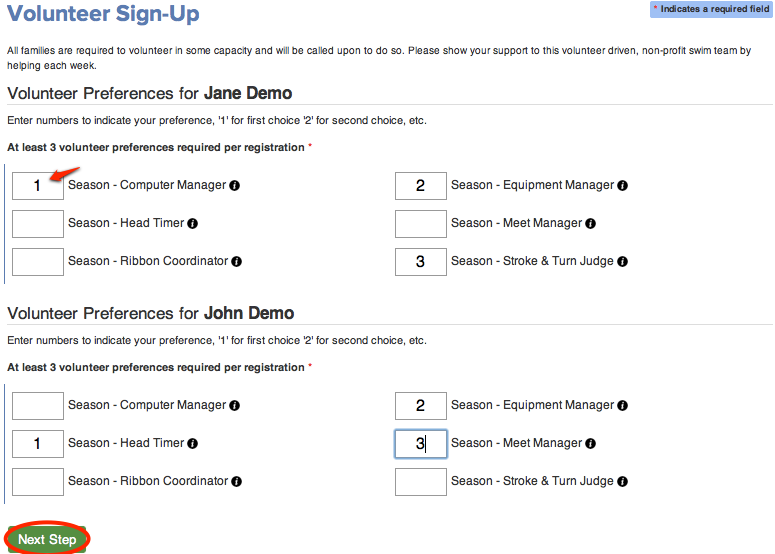
➞ Volunteer Role PreferencesIf your team collects job preferences, enter your preferences for each parent registering for the season. » Note: These preferences are for planning purposes only, you are not signing up for actual meet jobs right now.
Click the Next Step button to move on to the next section. |
➧ Step 6: Merchandise |
|
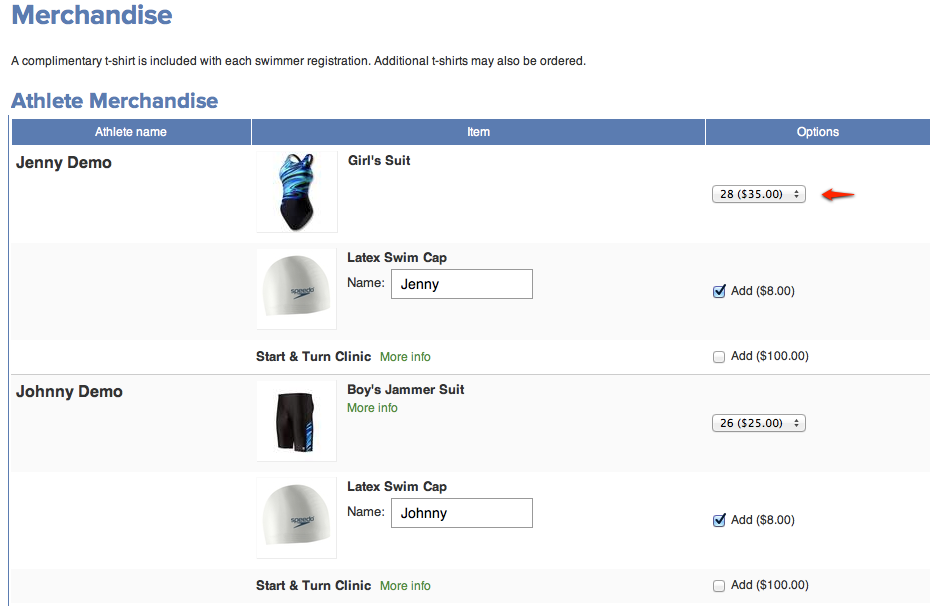
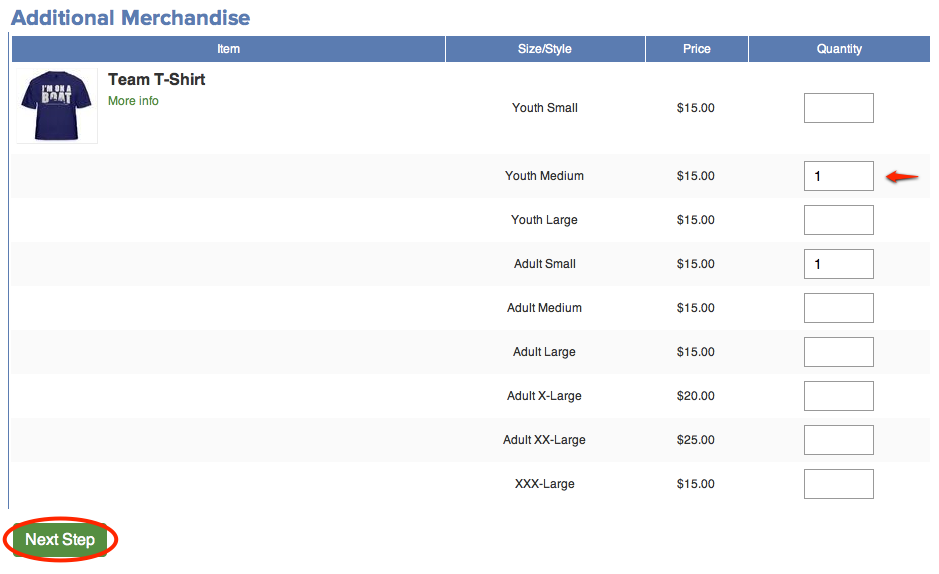
Items in Athlete Merchandise are specific to the athlete and limited to one per athlete. Select your item and other options to add to your registration.
The Additional Merchandise section is usually used to for buy extras of the athlete merchandise, or team spiritwear and can be ordered in any quantity.
Click the Next Step button to save your changes and move on to the next section. |
➧ Step 7: Order Summary and Payment |
|
Review your registration fees and merchandise orders on your Order Summary. If you have a discount code, you may enter it on this screen. Below the Order Summary, you'll have the payment options your team has selected to provide: ➞ Online Payment with a Credit CardIf you see a "Per-Athlete Technology Fee" displayed for each of your athletes, this means your team has chosen to collect the technology service fee from you directly. Swimtopia will only charge the per-athlete fee once in a 12-month period (Per Team - if on more than one Swimtopia team). If your team is not accepting online payments, this fee will not display and will be collected from the team at a later date. If your team is part of a league, they may be taking on this fee for each team and family, in which case, the fee will also not display. Contact your team administrators with any questions. ➞ Pay with your Membership AccountPREMIUM This feature is available to our Premium customers.If your team offers the option to bill your payment to a membership account (for example, if you're a member of a country club), they will offer the choice for you to enter your membership number. ➞ Pay by CheckPREMIUM This feature is available to our Premium customers.If your team offers the option to pay by check, you'll see a screen with remittance instructions. |
➧ Step 8: Confirmation |
|
Once you see the registration confirmation screen you will know you are fully registered. Your confirmation receipt below will be emailed to the address you entered during registration.
|


Comments
0 comments
Please sign in to leave a comment.