Create Custom Labels from SwimTopia Reports

We frequently get requests from teams for reports with specific label information. Using the "Mail Merge" feature in a word and spreadsheet document, you can create custom labels for your swim team from any SwimTopia report you'd like.
Here is an example of how to get mailing labels with swimmer data. By following these steps, you can use any SwimTopia report that exports to CSV to create your own custom labels.
I used Google Docs and Google Sheets for this example, since they are free.
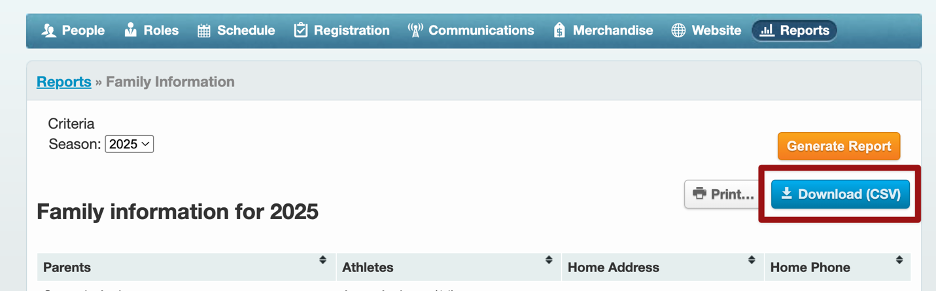
Step 1: Generate the Family Information Report, and then download the CSV
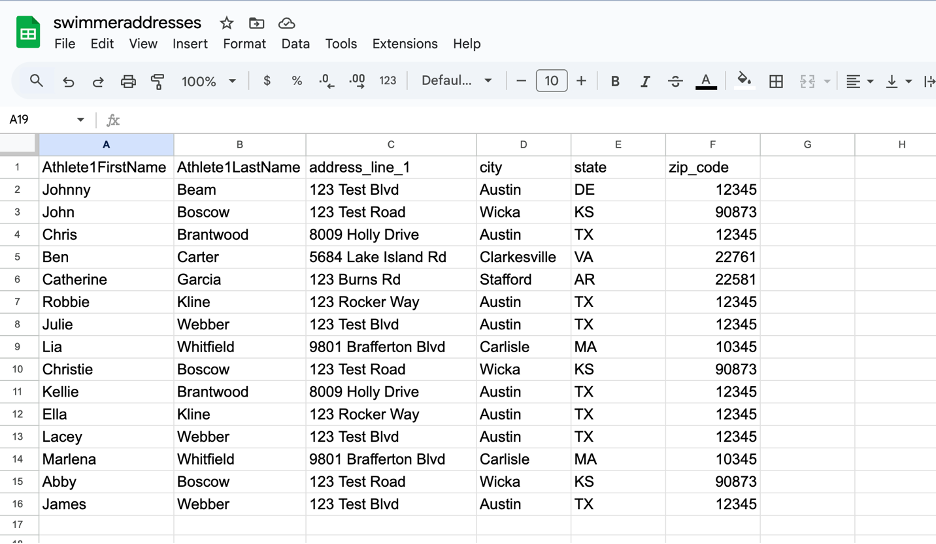
Step 2: Open the CSV with Google Sheets, and remove any columns and athletes you do not want, so that you are left with a list of the athletes in the meet, along with their addresses:
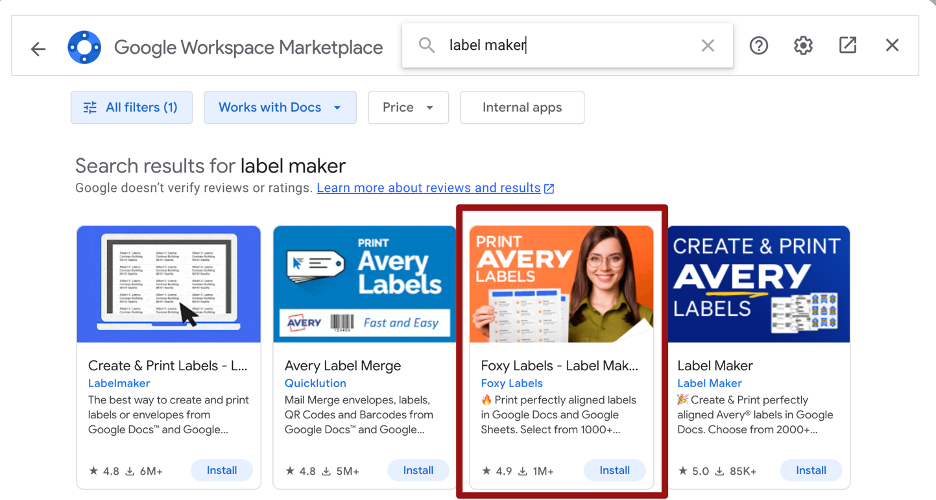
Step 3: Open a Google Doc, then select Extensions > Get Add-Ons.

You need to find a label creator; there will be many. I selected this one, again, because it was free:
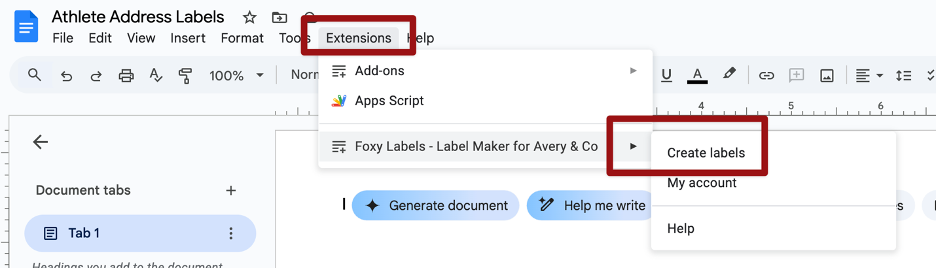
Step 4: Once you have installed the selected label creator, go back to Extensions > Label Maker > Create Labels.
Step 5: Select the label size you are using (look on your labels to see the number)
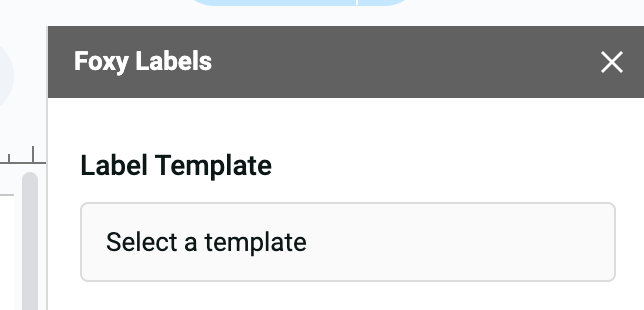
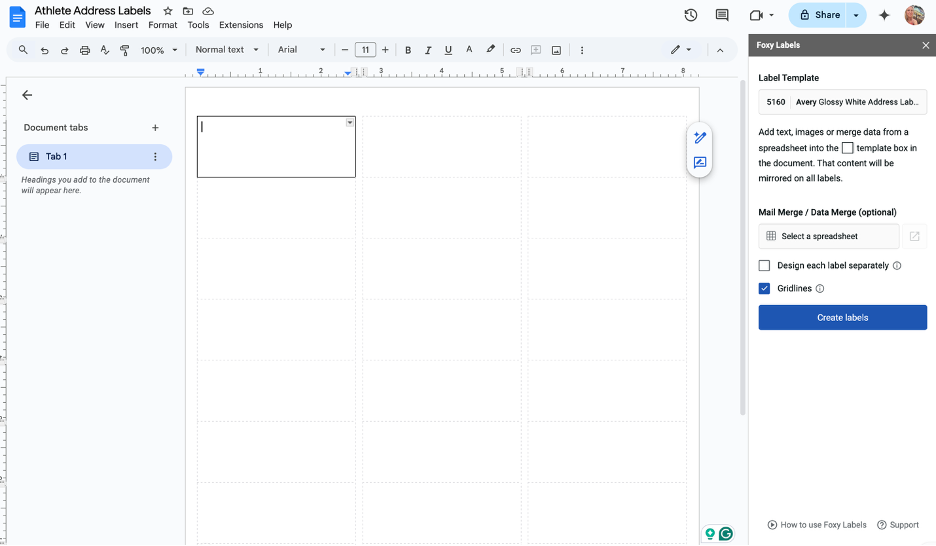
In this example, I selected Avery 5160.
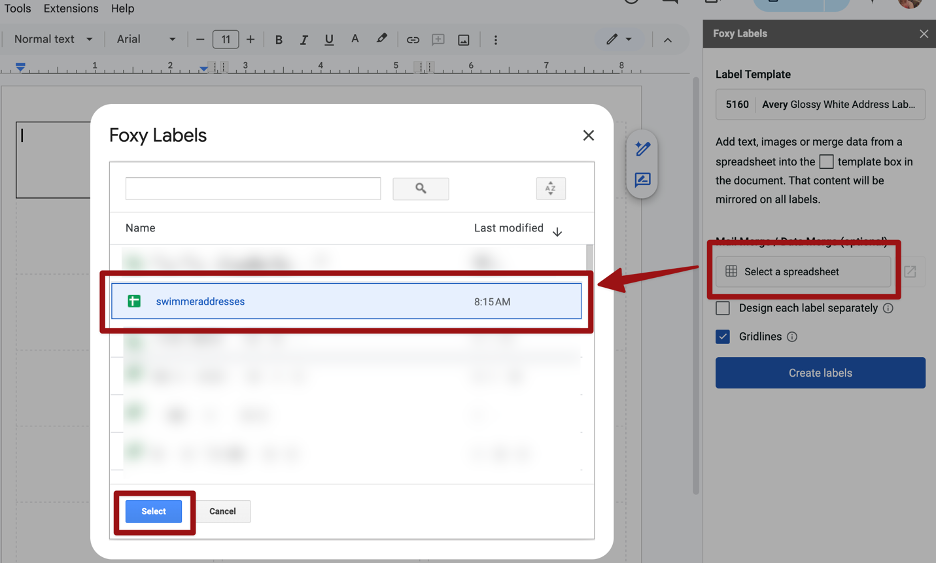
Step 6: Then, under the Mail Merge/Data Merge, choose the spreadsheet with your swimmer addresses:
Step 7: Now you can add “fields", which are the headers in each of your columns, to the label in whatever order and format you would like:
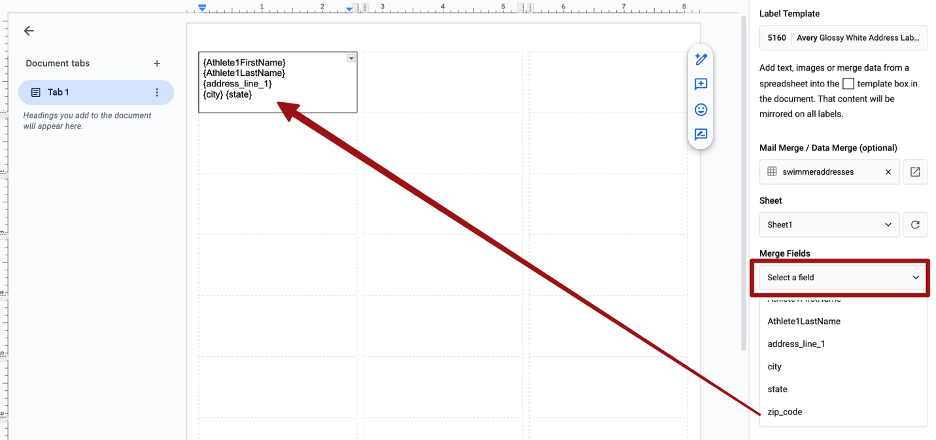
Step 8: When you are done adding your fields, open your label in a new document:
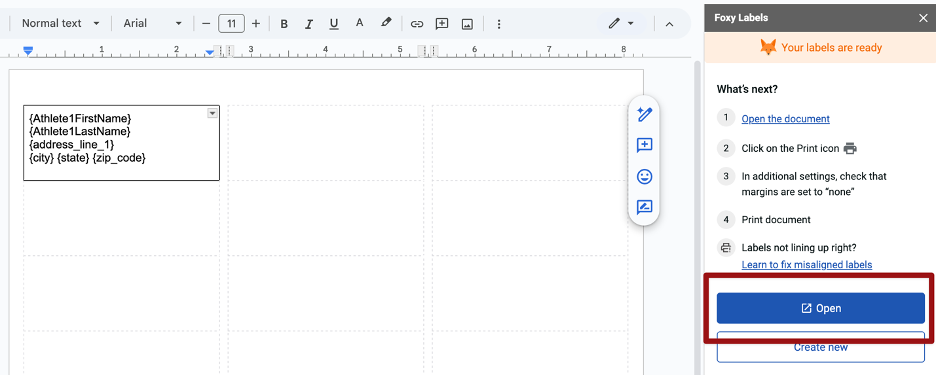
It will merge all of your swimmers’ information.
Step 9: You can now format the label however you like: center the fields, change fonts, sizes, etc.
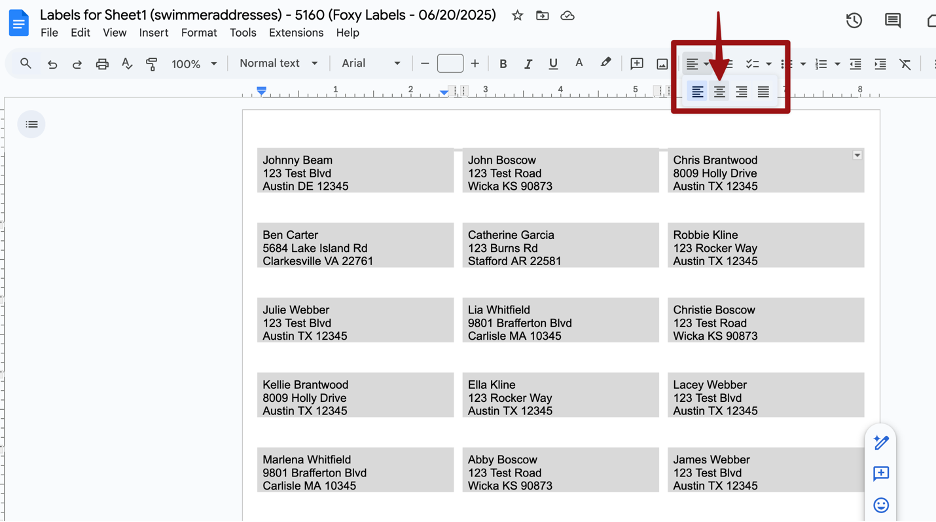
Step 10: Save your labels or print them.
Please sign in to leave a comment.
Comments
0 comments